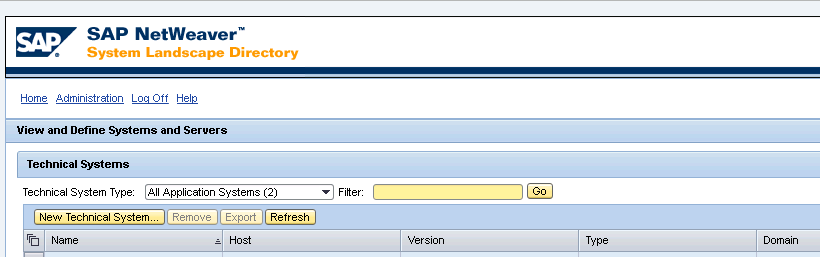
CONNECT SAP JAVA SYSTEM TO SLD
This article covers below points:At the end of this article you should be able to understand below points:
- How to Connect SAP JAVA SYSTEM TO SLD.
- Setting Up the SLD Data Supplier for AS Java Systems
- How to push JAVA System data to SLD
Prerequisites
- Your Central SLD server is running.
- Login to the SAP NetWeaver Administrator ( http://<host>:<HTTP port>/nwa ) as an AS Java administrator.
STEPS TO CONNECT SAP JAVA SYSTEM TO SLD :
Go to –> Configuration Management –> Security Management –> Destinations->Create
Here we are creating new destination to connect with SLD Server.
Make sure destination type should be “HTTP” with name “SLD_DataSupplier” if already created then edit same destination.
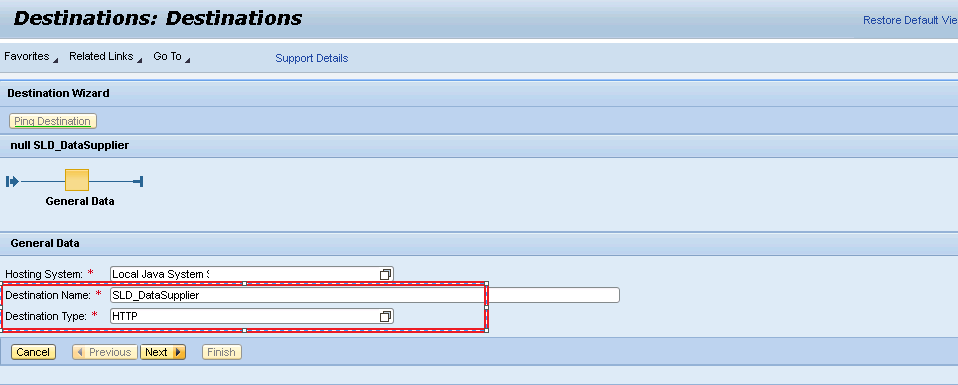
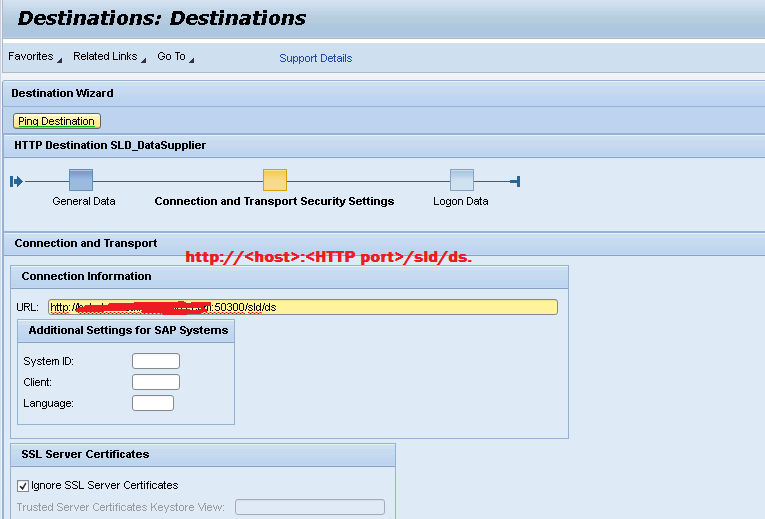
Enter HostName for your SLD Server as below format and do Ping Destination to check connectivity.
Provide credential for SLD server to connect:
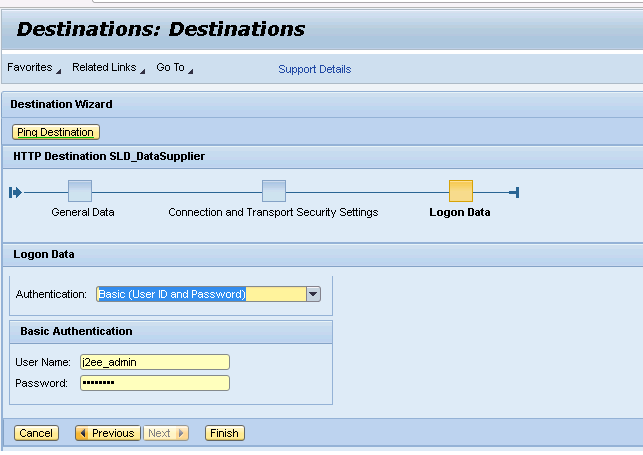
SLD Destination is created:
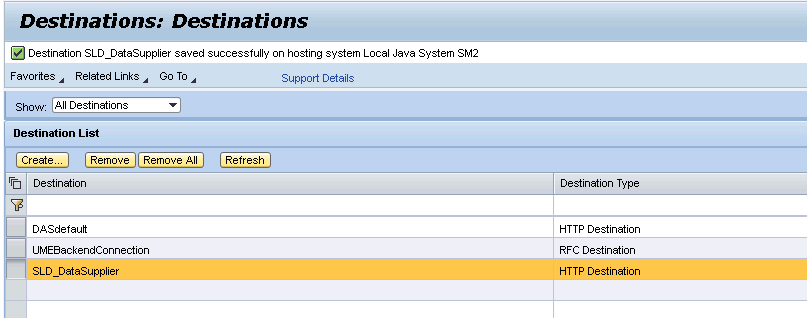
Now SLD destiantion has been created and we are ready to collect Java System data and send to SLD. Perform SLD Data Supplier Configuration.
SLD Data Supplier Configuration:

Now Click on Collect and Send Data.
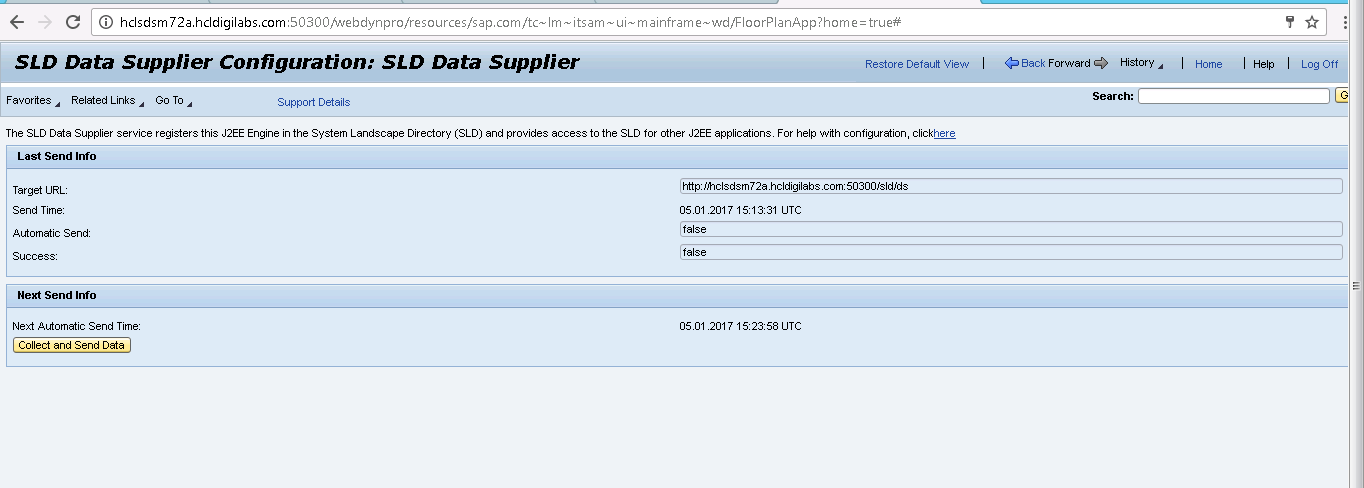
You should get below successful message .

Now you can verify your Java System detail in SLD server.